4 min read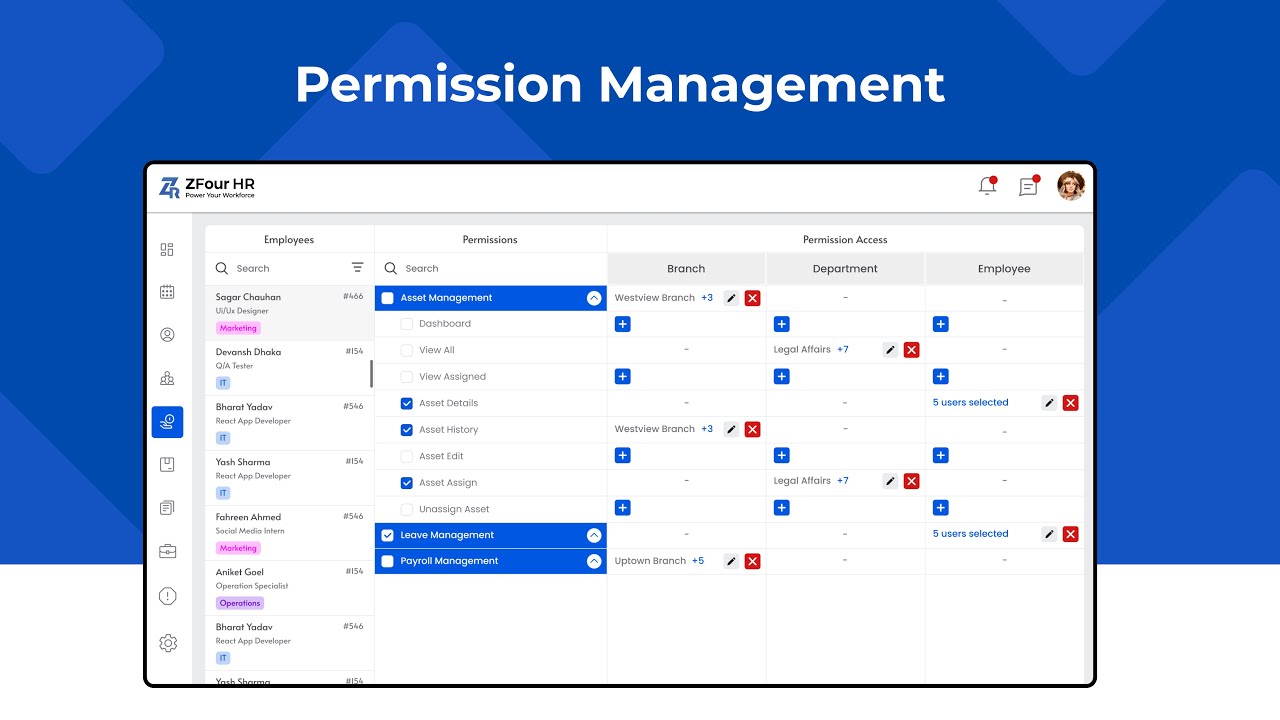
Not every employee needs to see everything in an HRMS. A field employee doesn't need payroll configuration access, and most employees don't need to view other people's salary records. User Permission Management in ZFour HRMS controls exactly this — what each role can view, edit, or approve within the system.
This guide explains how to manage user permissions as an admin, and why getting this right matters beyond just organizing the interface.
Quick Answer: How Do I Manage User Permissions in ZFour HRMS?
Log in to the ZFour HRMS Admin Portal.
Go to the Admin section.
Open User Permissions (also labeled "Role Permissions" in some configurations).
Select the role you want to edit — Employee, Manager, HR, Admin, or a custom role.
Toggle module access on or off (Attendance, Leave, Payroll, Reports, etc.).
Save changes — updates apply immediately, without requiring users to log out.
The exact roles and available modules depend on your organization's ZFour HRMS configuration.
What Are User Permissions in ZFour HRMS?
User permissions determine what each role can see and do within the system — what employees can view, what managers can approve, what HR can edit, and what only admins can control.
This isn't just about interface organization. Permission settings directly affect:
Data exposure — whether sensitive information like salary details is visible to roles that shouldn't see it
Approval integrity — whether the right people (and only the right people) can approve leave, regularization, or reimbursement requests
Accidental changes — whether users without the appropriate role can modify settings they shouldn't touch
How to Manage User Permissions
Step 1: Log In to the Admin Portal
Log in with your admin credentials and reach the main dashboard.
Step 2: Go to the Admin Section
From the left-side menu, select Admin — this houses employee management, attendance, policies, permissions, and system settings.
Step 3: Open User Permission Management
Within Admin, locate User Permissions or Role Permissions.
Step 4: Select the Role to Edit
Choose the role you want to modify — Employee, Manager, HR, Admin, or any custom roles your organization has configured.
Step 5: Enable or Disable Module Access
For the selected role, review each module (Attendance, Leave, Payroll, Reports, User Management, Policies, Settings, Documents, Timesheets) and toggle access on or off as appropriate.
Step 6: Save Changes
Save your updates. Changes apply immediately — affected users don't need to log out or back in for the new permissions to take effect.
Step 7: Verify the Role's Access (Recommended)
Confirm the changes worked as intended by asking someone with that role to check their view, or by logging in with a test account.
Common Roles and Typical Access Levels
Role | Typical Access |
|---|---|
Employee | Self-service: attendance, leave, payslips, profile |
Manager | Employee access, plus team approvals (leave, regularization) |
HR | Broader access to employee records, payroll-related data, reporting |
Admin | Full system configuration and user management access |
Custom | Configured per organization's specific structure |
For how these roles are initially assigned during employee onboarding, see how to upload users in ZFour HRMS.
Why Permission Management Matters Beyond Organization
Poorly configured permissions create two distinct risks that are easy to overlook:
Over-permissioning — giving roles broader access than necessary "just in case." This increases the number of people who can see sensitive data (like payroll details) or make changes that should be restricted, without any operational benefit.
Under-permissioning — restricting access so tightly that managers or HR can't do their actual jobs, creating workarounds (like sharing login credentials) that undermine the purpose of role-based access in the first place.
The goal is matching access to actual job requirements — not defaulting to maximum access for convenience, or minimum access for caution.
Data Access and Employee Privacy
Since permission settings directly control who can view sensitive employee information — salary details, personal records, attendance history — this connects to broader data protection responsibilities. In India, employee data handled through HR systems falls under the Digital Personal Data Protection Act (DPDPA), 2023, which requires organizations to apply appropriate access controls to personal data. Reviewing role permissions periodically — not just setting them once at implementation — helps ensure access stays aligned with actual need as roles and responsibilities change.
Best Practices for Managing User Permissions
Review permissions when roles change.
When an employee moves to a new position, update their permissions rather than leaving old access in place alongside new responsibilities.
Avoid using one admin account for multiple people.
Shared admin credentials make it impossible to trace who made a specific configuration change.
Test after major changes.
Verify a role's actual view after modifying permissions, rather than assuming the toggle worked as expected.
Periodically audit who has admin-level access.
Admin permissions accumulate over time as roles change; a periodic review helps catch access that should have been revoked.
Final Thoughts
User Permission Management in ZFour HRMS is a small setup task with outsized security and operational implications — it determines who can see sensitive data, who can approve what, and who can make system-level changes. Matching permissions to actual job needs, reviewing them as roles change, and periodically auditing admin-level access reduces both the risk of unnecessary data exposure and the friction of overly restricted access.
Want to see how permission management fits into a broader HR admin workflow?
Book a ZFour HRMS demo.

Farheen Ahmed
HR Tech Content Strategist at ZFour Technology Private Limited
Research-driven content on HRMS, payroll, attendance management, employee management, and modern HR technology for Indian businesses.