4 min read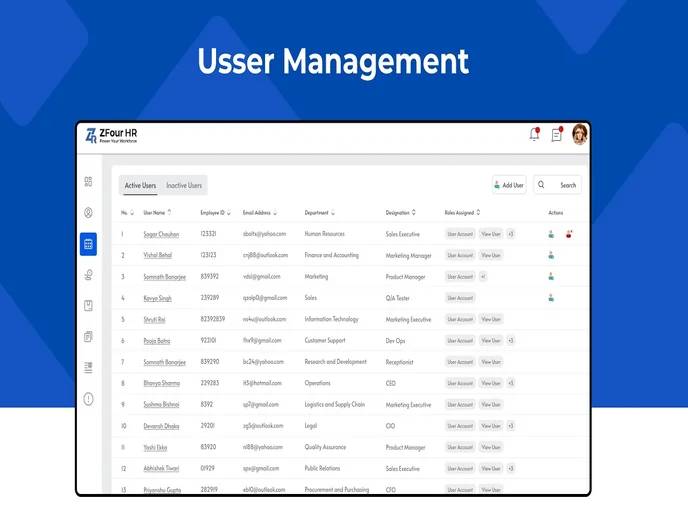
New employee onboarding often means the same information gets typed multiple times — once in a spreadsheet, once in an email to IT, sometimes again in a messaging app to confirm details. In ZFour HRMS, User Management centralizes this by letting admins bulk-upload employee data through a single template, rather than adding profiles one at a time or relying on scattered communication.
This guide explains how to upload users in ZFour HRMS, common errors to avoid, and how role-based access works once profiles are created.
Quick Answer: How Do I Upload Users in ZFour HRMS?
Open User Management in ZFour HRMS.
Download the Excel upload template.
Fill in employee details, following the required format for each field.
Save the file as
.xlsxwithout altering column headers.Upload the completed file back into User Management.
Review the uploaded profiles for accuracy before confirming.
The exact template fields and validation rules can vary depending on your organization's ZFour HRMS configuration.
Why Accurate User Uploads Matter
User Management is effectively the entry point for every other HRMS function — attendance, payroll, leave, and reporting all depend on employee profiles being set up correctly from the start.
When upload data is inaccurate or incomplete, the downstream effects are predictable:
Employees can't log in, generating avoidable support requests
Missing or incorrect role assignments block access to attendance or leave features
Reports pull incomplete or inconsistent data
HR spends time correcting individual records that could have been caught in the original upload
A few extra minutes reviewing the upload sheet before submitting is generally faster than correcting errors across multiple individual profiles afterward.
How to Upload Users in ZFour HRMS
Step 1: Open the User Management Section
Log in to ZFour HRMS and navigate to User Management.
Step 2: Download the Upload Template
Download the Excel template provided within the section — this is the structured format the system expects for bulk uploads.
Step 3: Fill the Template Carefully
Enter employee information into the template, keeping the following in mind:
Don't leave mandatory fields empty
Use the correct date format (typically YYYY-MM-DD)
Ensure email addresses are unique across the sheet
Match role and department names exactly as they appear in the HRMS
Avoid extra spaces or special characters in text fields
Step 4: Save Without Modifying Structure
Save the file as .xlsx. Don't rename columns or the sheet itself — this is a common cause of upload failures.
Step 5: Upload the File
Return to User Management, select the completed file, and upload it. The system validates each entry and flags issues for correction.
Step 6: Review the Uploaded Profiles
After a successful upload, review the resulting profiles — names, roles, departments, and joining dates — before considering the process complete.
Common Upload Errors and How to Fix Them
Error | Likely Cause | Fix |
|---|---|---|
Upload fails entirely | Renamed columns or altered template structure | Re-download the template and re-enter data without modifying structure |
Specific rows flagged | Missing mandatory field | Fill in the required field and re-upload |
Duplicate entry error | Repeated email address or phone number | Check for accidental duplicate rows |
Role not recognized | Role name doesn't match system-defined roles | Match the exact role name/spelling used in ZFour HRMS |
Date-related error | Incorrect date format | Use the required format (typically YYYY-MM-DD) |
Understanding Roles and Access
Each employee's role determines what they can see and do within ZFour HRMS. A manager typically needs broader access than a new employee, while HR roles need access to modules that most employees don't.
Assigning the correct role during upload — rather than fixing access issues afterward — ensures new employees have appropriate access from their first login.
Role | Typical Access |
|---|---|
Employee | Self-service: attendance, leave, payslips, profile |
Manager | Employee access, plus team approvals (leave, regularization) |
HR | Broader access to employee records, payroll-related data, reporting |
Admin | Full system configuration and user management access |
The exact roles and permission levels available depend on your organization's ZFour HRMS configuration.
Best Practices for User Uploads
Validate the template before uploading.
Double-check mandatory fields, date formats, and role names against existing system values before submitting.
Upload in smaller batches for large organizations.
If onboarding many employees at once, uploading in manageable batches makes it easier to isolate and fix errors than troubleshooting a single large file.
Confirm access immediately after upload.
Have a new employee attempt to log in shortly after their profile is created, rather than waiting until it becomes an issue.
Keep a record of what was uploaded and when.
This makes it easier to trace an error back to a specific batch if issues surface later.
For a broader look at how employee profile data connects with attendance tracking, see how to mark attendance in ZFour HRMS.
Data Accuracy and Access Control
Because user upload templates typically include personal information — names, contact details, and role assignments — accuracy and access control matter beyond just avoiding login issues. In India, employee data collected and stored through HR systems falls under the scope of the Digital Personal Data Protection Act (DPDPA), 2023, which governs how personal data should be collected, used, and protected. Restricting upload and admin access to authorized personnel, and avoiding storing upload templates in unsecured locations, is good practice regardless of specific legal requirements.
Final Thoughts
Bulk user uploads in ZFour HRMS work best when the template is filled carefully the first time — mandatory fields complete, roles matching the system exactly, and formatting consistent. The time spent reviewing the sheet before uploading is generally less than the time spent correcting individual profile errors after the fact, and getting this step right is what makes attendance, payroll, and leave workflows function smoothly for every employee added.
Ready to onboard your team into ZFour HRMS?
Book a ZFour HRMS demo.

Farheen Ahmed
HR Tech Content Strategist at ZFour Technology Private Limited
Research-driven content on HRMS, payroll, attendance management, employee management, and modern HR technology for Indian businesses.