6 min read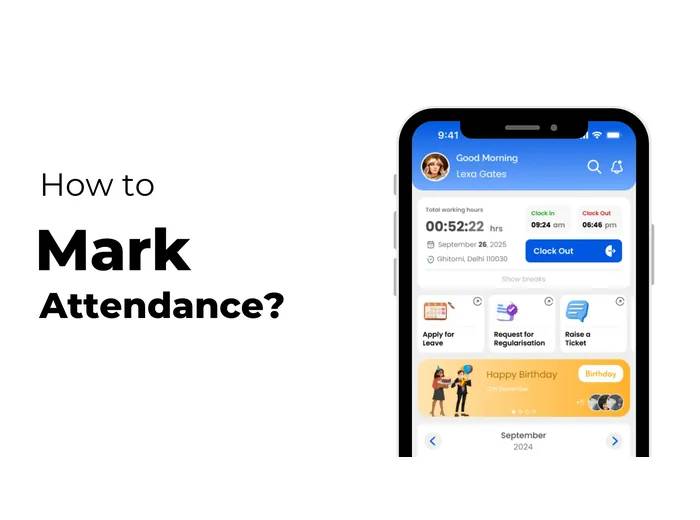
Marking employee attendance accurately is an important part of daily HR operations. With ZFour HRMS, employees can record attendance through the available web or mobile workflow, while HR teams can manage attendance records through a centralized system.
This guide explains how to mark attendance in ZFour HRMS, including login, clock-in, clock-out, location or selfie verification where enabled, attendance history, common issues, and what to do when an attendance record needs correction.
Quick Answer: How Do You Mark Attendance in ZFour HRMS?
To mark attendance in ZFour HRMS:
Log in to your ZFour HRMS account.
Open the Attendance section or dashboard.
Allow location access if required by your organization.
Complete selfie verification if enabled.
Select Clock In / Mark In when starting work.
Use the configured break option when taking a break, if applicable.
Select Clock Out / Mark Out when your workday ends.
Open Attendance History to review the recorded attendance.
The exact buttons and verification requirements can vary according to your organization's ZFour HRMS configuration.
Key Takeaways
Task | What to Do |
|---|---|
Login | Use your registered ZFour HRMS credentials. |
Start work | Select Clock In / Mark In |
Location | Allow access if location verification is enabled. |
Identity verification | Complete selfie verification if enabled |
Break | Use the configured break option where available |
End work | Select Clock Out / Mark Out. |
Review records | Open Attendance History |
Incorrect record | Follow your organization's regularization process. |
What Is Attendance Marking?
Attendance marking is the process of recording when an employee starts and ends their working time.
Depending on the organization's configuration, attendance may involve: Clock In, Clock Out, Breaks, Working hours, Location verification, Selfie verification, Attendance history.
The purpose is to create a record of the employee's working time that can be reviewed by the employee, HR, or authorized managers.
How to Mark Attendance in ZFour HRMS
Step 1: Log In to ZFour HRMS
Open ZFour HRMS through the available web portal or mobile application. Enter your registered credentials and log in. After successful login, open the employee dashboard.
Step 2: Open the Attendance Section
Go to the Attendance section or locate the attendance action available on your dashboard. The exact interface can vary depending on your organization's configuration and the device you are using.
Step 3: Complete Verification and Clock In
Depending on your organization's configuration, you may be asked to allow location access, complete selfie verification, or both, before you can mark attendance. Once any required verification is complete, select Clock In or Mark In and confirm your attendance was recorded.
These verification steps and the exact screen layout differ slightly between web and mobile — see the mobile-specific guide for the full walkthrough, including troubleshooting for location and selfie issues.
Because location and selfie-based verification involve personal data, organizations should ensure their attendance policies align with applicable data protection requirements. For more on India's data protection framework, see the Ministry of Electronics and Information Technology (MeitY).
Step 4: Manage Breaks if the Feature Is Enabled
If your organization uses the break feature, use the configured break option when starting and ending a break. This helps distinguish working time from recorded break time where the organization's attendance configuration supports this functionality.
Step 5: Select "Clock Out" or "Mark Out."
At the end of your working period, return to the attendance section and select Clock Out or Mark Out. This records the end of your attendance period. If your organization calculates working hours from attendance records, the final working-time calculation will depend on the configured attendance rules.
Step 6: Check Attendance History
After marking attendance, open Attendance History where available. Depending on your access, you may be able to review: Daily attendance, Check-in time, Check-out time, Working hours, Breaks, Late entries, Early departures, Overtime.
Reviewing your attendance regularly can help you identify discrepancies before they become payroll or attendance issues.
Web vs Mobile Attendance in ZFour HRMS
ZFour HRMS supports attendance workflows across web and mobile environments, with the exact functionality depending on organizational configuration.
Attendance Activity | Web | Mobile |
|---|---|---|
Login | Yes, where enabled | Yes |
Clock In | Where enabled | Where enabled |
Clock Out | Where enabled | Where enabled |
Location verification | Where configured | Where configured |
Selfie verification | Where configured | Where configured |
Attendance history | Where enabled | Where enabled |
Break management | Where configured | Where configured |
If you specifically use the mobile application, see the dedicated How to Mark Attendance in ZFour Mobile Application guide.
What If You Forget to Mark Attendance?
If you forget to Clock In or Clock Out, do not create a duplicate attendance record unless your organization's process specifically allows it.
Instead: Check your attendance history. Confirm whether the attendance was recorded partially. Contact your manager or HR team if required. Use the organization's attendance regularization process where applicable.
How Is Attendance Marking Different From Attendance Regularization?
These two processes should not be confused.
Attendance Marking | Attendance Regularization |
|---|---|
Records normal attendance | Requests correction of an attendance issue |
Usually performed at the beginning/end of work | Usually performed after a discrepancy is identified |
Example: Clock In | Example: Forgot to Clock Out |
Creates or completes attendance record | Requests an adjustment to a record |
If your attendance was not recorded correctly, use the appropriate regularization workflow instead of repeatedly trying to mark attendance.
Common Attendance Marking Problems
The Clock In Button Is Not Available — Possible reasons include: Account permissions, Organization configuration, Attendance schedule, Device or application issue. Contact your HR or system administrator if the option remains unavailable.
Location Permission Is Not Working — Check that: Location services are enabled. ZFour HRMS has the required permission. You are in the expected attendance area if geo-fencing is configured. If the problem continues, contact your HR/admin team.
Selfie Verification Is Not Working — Check: Camera permission, Lighting, Camera access, Application permissions. If selfie verification is not required by your organization, the workflow may differ.
Clock Out Was Missed — Check your attendance record first. If the check-out is missing, follow your organization's attendance correction or regularization process.
Attendance Time Looks Incorrect — Do not assume the record is incorrect without checking the relevant attendance rules. If there is a genuine discrepancy, submit a regularization request according to company policy.
Attendance Marking and Payroll
Attendance data can become an input into payroll workflows depending on the organization's configuration. For example, attendance information may be relevant to: Working days, Overtime, Loss of pay, Applicable attendance-based adjustments.
Employees should therefore review genuine attendance discrepancies promptly.
For businesses evaluating the broader payroll workflow, see ZFour Payroll Management Software.
Attendance Marking Best Practices for Employees
Mark Attendance at the Correct Time — Clock in when you begin your workday and Clock Out when your workday ends, according to company policy.
Check Your Attendance Record — Review attendance history periodically.
Keep Location Services Available When Required — If your organization uses location-based attendance, ensure the required permissions are enabled.
Don't Share Your Login — Use your own credentials to access your HRMS account.
Report Genuine Attendance Issues — If attendance was not recorded correctly, report the issue instead of attempting to create inaccurate records.
Check Before Payroll Cut-Off — If your company has a payroll cut-off, make sure genuine attendance discrepancies are reported before the relevant period is finalized.
How ZFour HRMS Supports Attendance Management
ZFour's current HRMS architecture includes attendance management alongside related HR workflows such as leave, payroll, shifts, GPS attendance, and reporting. Its attendance solution includes capabilities such as attendance tracking, shift management, and related workforce controls.
The purpose of this article, however, is specifically how employees mark attendance. For the broader admin workflow, see How Admins Can Master Attendance Management Easily.
Need Help With ZFour Attendance?
If you need to correct a missing or incorrect attendance record, use the ZFour Attendance Regularization Guide.
If you specifically need instructions for the mobile app, see the ZFour Mobile Attendance Guide.
For businesses looking for a centralized attendance solution, explore ZFour Attendance Management.
Final Takeaway
Marking attendance in ZFour HRMS follows a simple workflow:
Log In → Attendance → Required Verification → Clock In → Break → Clock Out → Attendance History
The exact options can vary according to your organization's configuration.
The important distinction is simple: mark attendance when you are recording normal work attendance; use regularization when an existing attendance record needs correction.
See How ZFour HRMS Attendance Works
Watch this quick guide to understand how employees can manage attendance using ZFour HRMS.

Farheen Ahmed
HR Tech Content Strategist at ZFour Technology Private Limited
Research-driven content on HRMS, payroll, attendance management, employee management, and modern HR technology for Indian businesses.