4 min read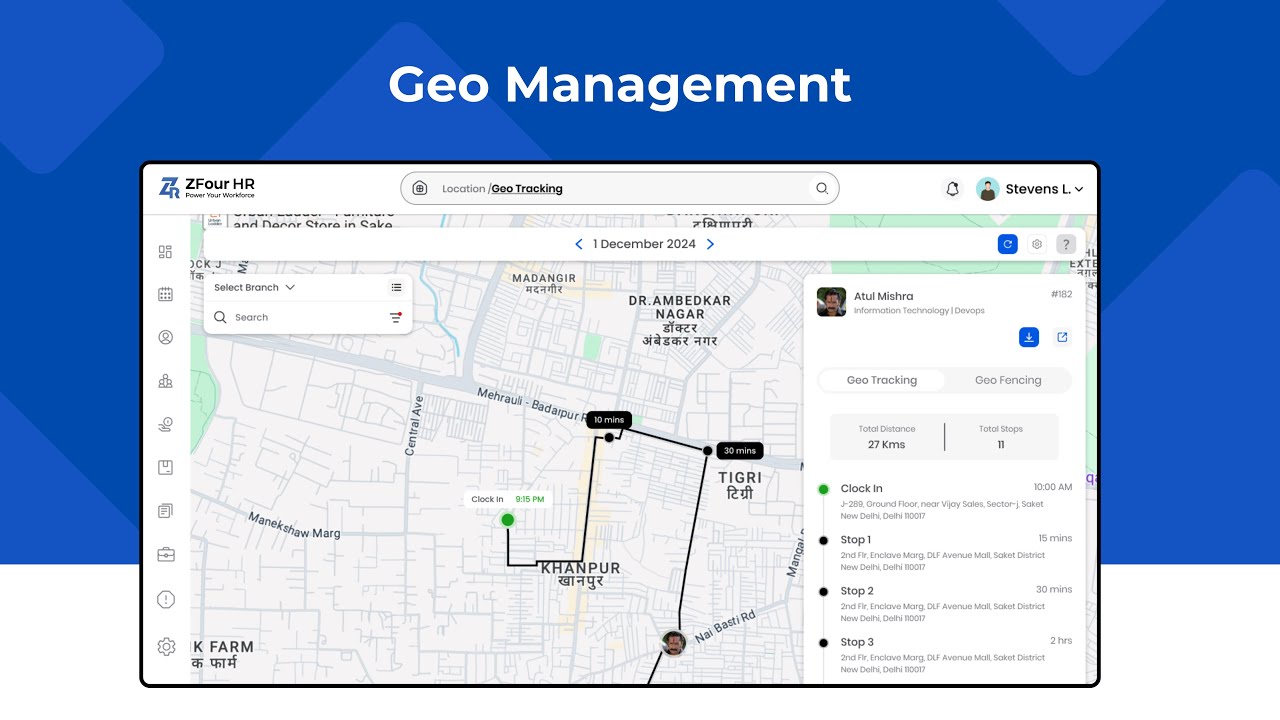
Keeping track of employees who work from the field or across multiple locations requires a balance: trusting the team while still needing accurate, verifiable attendance data. Geo Management in ZFour HRMS addresses this using GPS-based location tracking, letting admins verify check-ins and manage field teams in real time without relying on manual reporting or trust alone.
This guide walks admins through setting up Geo Management step by step, from initial configuration to generating reports.
Quick Answer: How Do I Set Up Geo Management in ZFour HRMS?
Log in to the ZFour HRMS Admin Portal and go to Attendance → Geo Management.
Open Settings and activate Geo Attendance, setting the check-in radius and enabling GPS tracking.
Add work locations under Geo-Fence → Add New, entering name, address, and radius.
Set role-based permissions under Roles & Permissions.
Ensure employees enable GPS and location access in the ZFour mobile app.
Monitor live check-ins and locations from the Admin Portal map view.
Review and approve flagged attendance entries before payroll processing.
Generate and export Geo Attendance Reports as needed.
The exact interface and available settings can vary depending on your organization's ZFour HRMS configuration.
Setting Up Geo Management: Step by Step
Step 1: Log In and Access Geo Management
Log in to your ZFour HRMS Admin account, go to Attendance, and select Geo Management. You'll see employee locations and attendance status in real time, viewable as a list or on a live map.
Step 2: Configure Geo Attendance Settings
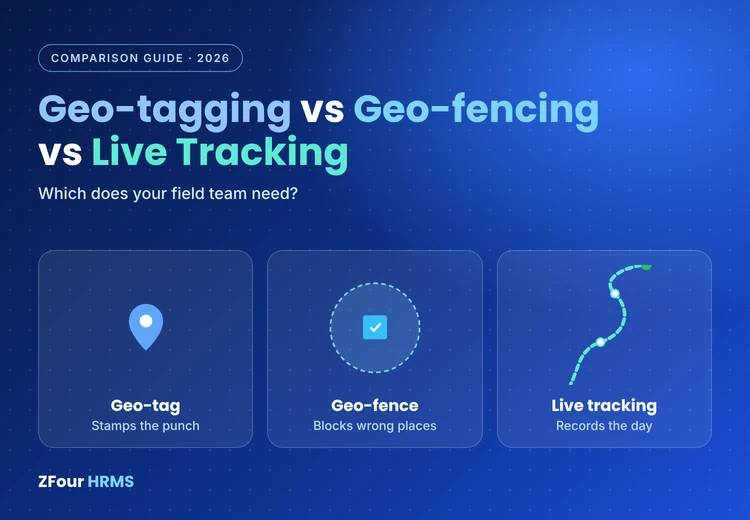
Open the settings tab to activate Geo Attendance. Set the check-in radius (how close an employee must be to a defined location to mark attendance) and enable GPS tracking. If you want to restrict check-ins to specific areas entirely, enable Geo-Fencing.
Step 3: Add Work Locations (Geo-Fences)
Go to Geo-Fence → Add New and enter the name, address, and radius for each site — for example, "Corporate Office" or a specific client location. Employees checking in near these points will have their location automatically verified.
Step 4: Set Permissions and Assign Teams
Under Roles & Permissions, confirm admin access to Geo Management features, and set view-only access for HR executives or team leads if appropriate. Assign the relevant geo-fences to each team so tracking stays scoped to the correct zones.
Step 5: Set Up Employees on the Mobile App
For Geo Management to function, employees need to:
Enable GPS location on their device
Allow location access for the ZFour HRMS app
Check in and check out through the app directly
Step 6: Monitor Live Tracking
Once configured, active employees appear on the Admin Portal map, with check-in location, time, and route history attached to each entry. Data can be filtered by date, team, or site.
Step 7: Review and Approve Flagged Attendance
Geo Management flags entries outside the allowed radius or without GPS data. Review the exact coordinates for each flagged entry and approve or reject it before it moves into payroll processing.
Step 8: Generate Reports
From the Reports section, generate Geo Attendance Reports showing working hours, check-ins, and flagged entries, exportable as Excel or PDF for record-keeping or payroll.
Geo Management vs. Manual Field Attendance Tracking
Area | Manual Tracking | Geo Management in ZFour HRMS |
|---|---|---|
Location verification | Relies on employee self-report or phone calls | GPS-verified against defined geo-fences |
Visibility | Limited, requires manual check-ins with team | Real-time map view of active employees |
Flagging discrepancies | Manual review, easy to miss | Automatically flagged for admin review |
Reporting | Manually compiled | Exportable reports generated on demand |
Scalability | Difficult across multiple sites | Centralized across all configured locations |
Location Data and Employee Privacy
Because Geo Management involves collecting employee location data, it's worth treating this as a personal data matter, not just an operational one. In India, location data collected through workplace systems falls under the broader scope of the Digital Personal Data Protection Act (DPDPA), 2023, which governs how personal data — including location information — should be collected, used, and safeguarded.
Practically, this means organizations should:
Clearly inform employees when geo-tracking is active and why
Limit tracking to work-relevant purposes (attendance verification, not continuous monitoring)
Ensure access to location data is restricted to authorized roles
Best Practices for Using Geo Management
Communicate before activating. Let employees know when Geo Attendance is active and why, ideally during onboarding or through a clear internal announcement, rather than activating it silently.
Set realistic check-in radii. A radius that's too tight can cause legitimate check-ins to fail due to normal GPS variance; too loose defeats the purpose of location verification.
Review flagged entries promptly. Letting flagged attendance pile up before payroll processing creates unnecessary last-minute reconciliation work.
Restrict access appropriately. Use role-based permissions so only those who need visibility into employee locations have it, rather than defaulting to broad access.
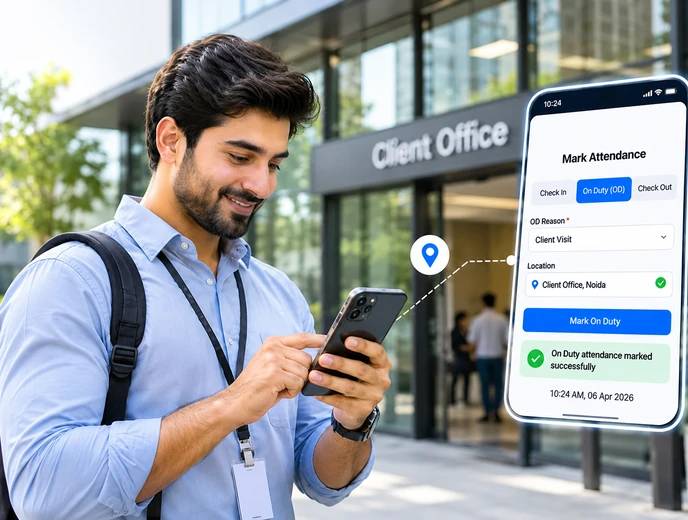
For a broader look at how attendance data connects to daily employee workflows, see For a broader look at how attendance data connects to daily employee workflows, see how to mark attendance in ZFour HRMS.
Final Thoughts
Geo Management gives admins verified, real-time visibility into field and multi-location attendance without depending on manual check-ins or informal trust. The goal isn't constant employee monitoring — it's building a transparent, verifiable attendance record that benefits both accuracy for the organization and fairness for employees, provided it's set up with clear communication and appropriate access controls.
Ready to set up Geo Management for your team?
Book a ZFour HRMS demo to see the full setup walkthrough.

Farheen Ahmed
HR Tech Content Strategist at ZFour Technology Private Limited
Research-driven content on HRMS, payroll, attendance management, employee management, and modern HR technology for Indian businesses.