6 min read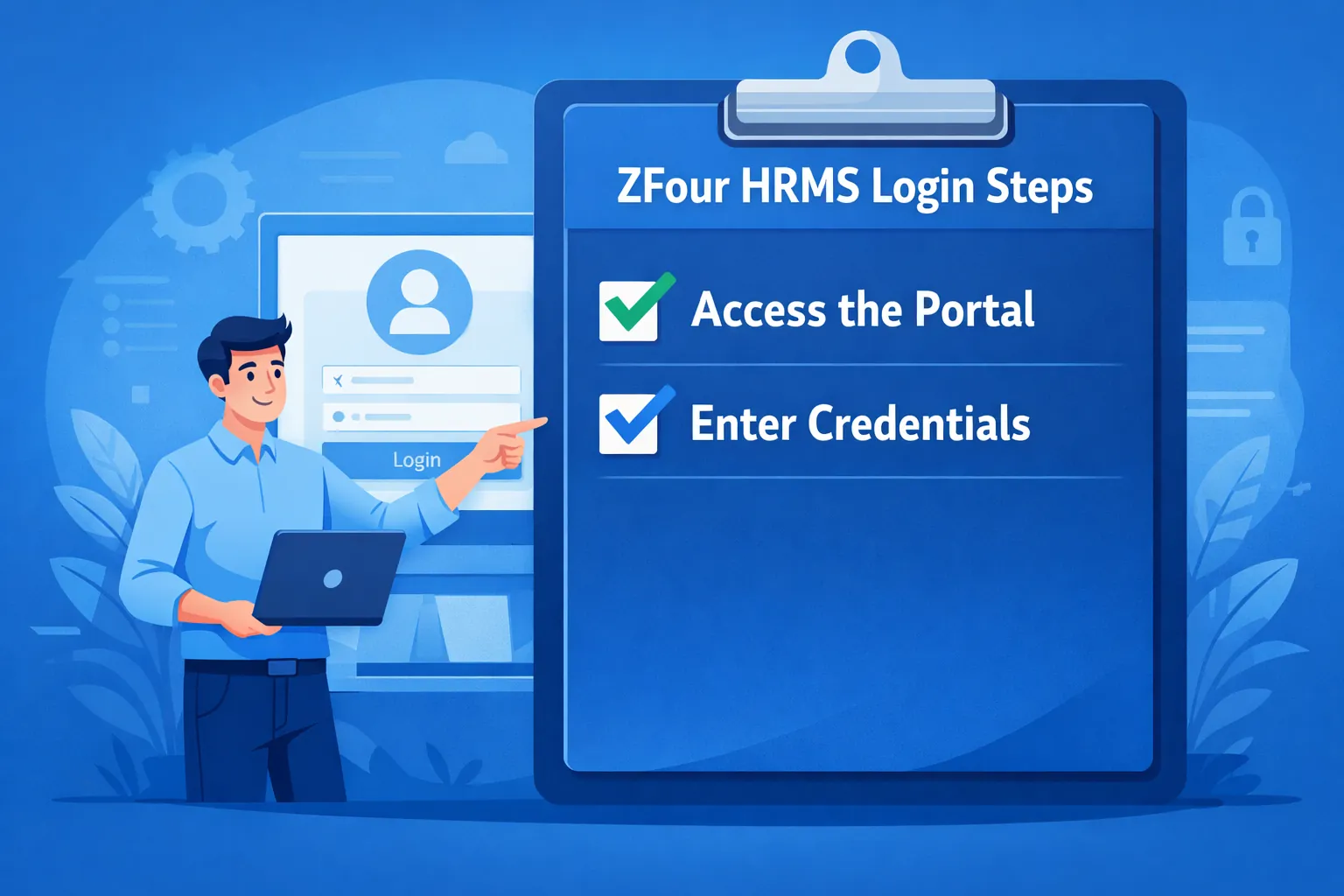
An HRMS portal gives employees a centralized way to access workplace information and HR services online. Depending on how an organization configures its HRMS, employees may use the portal to view attendance, apply for leave, access payslips, update profile information, and use other employee self-service features.
If you are trying to understand how to login to an HRMS portal, the process usually involves opening the organization's official HRMS login page, entering your registered credentials, completing any required verification, and accessing the employee dashboard.
This guide explains the typical HRMS portal login process, common login problems, and what employees can do after successfully signing in.
What Is an HRMS Portal?
An HRMS portal (Human Resource Management System portal) is a digital platform that allows employees and HR teams to access and manage HR-related information.
Depending on the organization's setup, an employee portal may provide access to:
Attendance and working hours
Leave applications and balances
Payslips and salary information
Employee profile and personal information
Documents and HR forms
Performance-related information
Company announcements
Requests and approvals
The exact features available after login depend on the HRMS configuration, employee role, and permissions assigned by the organization.
How to Login to an HRMS Portal
The exact login process can vary between HRMS platforms and organizations. However, the following steps cover the most common workflow.
Step 1: Open the Official HRMS Login Page
Start by opening the HRMS login page provided by your employer or HR administrator.
Always check that you are using the official website or application provided by your organization before entering your credentials. Avoid entering passwords, OTPs, payroll information, or other sensitive information into unfamiliar links.
Step 2: Enter Your Login Credentials
Enter the credentials provided by your organization.
These may include:
Employee ID
Registered email address
Registered mobile number
Username
Password
The exact information required depends on how the HRMS account has been configured.
If you have not received your login credentials, contact your HR or system administrator instead of creating another account unless the platform specifically provides a self-registration option.
Step 3: Complete Verification if Required
Some HRMS platforms may require an additional verification step before allowing access.
Depending on the organization's configuration, this may involve:
OTP verification
Two-factor authentication
Email verification
Authentication through an approved application
Complete the verification using the method provided by your organization.
Step 4: Access Your HRMS Dashboard
After successful authentication, you should be taken to the employee dashboard.
Depending on your permissions, the dashboard may provide access to modules such as:
HRMS Module | Typical Employee Use |
|---|---|
Attendance | View attendance records and working hours |
Leave | Check balances and submit leave requests |
Payroll | View payslips and salary-related information |
Profile | Review or update permitted employee details |
Documents | Access available HR documents |
Performance | View assigned goals, reviews, or feedback |
Announcements | Read company or HR communications |
The modules displayed can differ according to the organization's HRMS configuration and your employee permissions.
Already logged in and want to understand the dashboard?
See the ZFour HRMS dashboard training guide for a detailed walkthrough of the available modules.
How to Login to ZFour HRMS
For ZFour HRMS users, the login process depends on how the organization's account has been configured and how access credentials are issued.
Employees should use the login details and access instructions provided by their organization's HR or administrator.
A typical process is:
Open the ZFour HRMS login page or approved application.
Enter the credentials associated with your employee account.
Complete any required verification.
Access the available employee dashboard and HR services.
The exact screens and authentication steps may vary depending on the organization's configuration, user role, and enabled security settings.
What Can Employees Do After HRMS Login?
After logging in, employees may be able to use several self-service HR functions from the dashboard.
Attendance Management
Employees can check available attendance information, depending on the organization's configuration. Some systems may also provide attendance-related requests or regularization workflows.
Leave Management
Employees may be able to:
Check leave balances
Apply for leave
View previous requests
Track approval status
Payroll and Payslips
Where payroll access is enabled, employees may be able to view salary information and download available payslips.
Employee Profile
Employees may be able to review or update permitted personal information. Some changes may require HR approval.
HR Documents
Depending on the organization's setup, employees may access documents, forms, policies, or other HR-related records through the portal.
Performance Information
Some HRMS platforms provide access to performance goals, appraisal information, feedback, or related workflows.
HRMS Login vs HRMS Registration
If your account hasn't been created or activated yet, see our HRMS portal registration guide instead of trying to log in.
Login and registration are different processes and are often confused by new employees.
Login | Registration |
|---|---|
Used to access an existing account | Used to create or activate an account |
Requires existing credentials | May require an invitation or employee information |
Usually performed repeatedly | Usually completed during initial account setup |
Leads to the employee dashboard | Creates or activates access to the system |
If your organization has already created your employee account, you generally need to log in rather than register again.
Common HRMS Login Problems and Solutions
Login problems can occur for several reasons. Try the relevant solution below before contacting your HR or system administrator.
Forgot Password
Use the Forgot Password or password-reset option if one is available.
Follow the verification process provided by the HRMS and create a new password according to the platform's requirements.
Incorrect Employee ID or Username
Check that you are entering the exact employee ID, username, email address, or mobile number associated with your account.
If the credentials were provided by HR, confirm them with your HR administrator.
OTP Not Received
If your HRMS requires OTP verification:
Check your registered mobile number or email.
Wait briefly before requesting another OTP.
Check your network connection.
Avoid repeatedly requesting OTPs within a short period.
If the problem continues, contact your administrator to verify your registered contact information.
Account Not Activated
New employees may not be able to log in until their HRMS account has been created or activated.
Contact your HR or system administrator if you receive an account-not-found or inactive-account message.
Login Page Is Not Opening
Check your internet connection and confirm that you are using the correct official HRMS URL or application.
If the issue affects multiple employees, the organization's administrator or HRMS support team may need to investigate it.
Account Is Locked
Repeated unsuccessful login attempts may trigger account-security controls on some systems.
Do not continue guessing passwords. Follow the organization's account-recovery process or contact the system administrator.
HRMS Login Security Best Practices
Employees should treat HRMS credentials as sensitive account information.
Follow these basic practices:
Use only the official HRMS website or application.
Never share your password or OTP with another person.
Avoid saving credentials on shared or public computers.
Use a strong, unique password where supported.
Log out when using a shared device.
Be cautious of unexpected login links received by email or messaging platforms.
Contact your HR or IT administrator if you suspect unauthorized account access.
What If I Cannot Login to My HRMS Portal?
If you cannot access the HRMS portal after checking your credentials, first identify the type of problem.
Credential problem: Use the password-reset process or contact your administrator.
OTP problem: Verify your registered contact details and try the available verification process again.
Account problem: Ask HR or the system administrator to confirm that your employee account is active.
Technical problem: Check your browser, internet connection, application version, and the official HRMS access URL.
This approach helps distinguish an employee-account issue from a temporary technical problem.
Conclusion
An HRMS portal login provides employees with a centralized way to access the HR services made available by their organization. While the exact authentication process varies between systems, the general workflow is to open the official login page, enter valid credentials, complete any required verification, and access the employee dashboard.
For ZFour HRMS users, the available features and login experience depend on the organization's configuration and employee permissions. Once logged in, employees can use the available HR workflows from their dashboard.
Organizations looking to centralize employee attendance, leave, payroll, and other HR workflows can explore ZFour HRMS solutions.

Farheen Ahmed
HR Tech Content Strategist at ZFour Technology Private Limited
Research-driven content on HRMS, payroll, attendance management, employee management, and modern HR technology for Indian businesses.