6 min read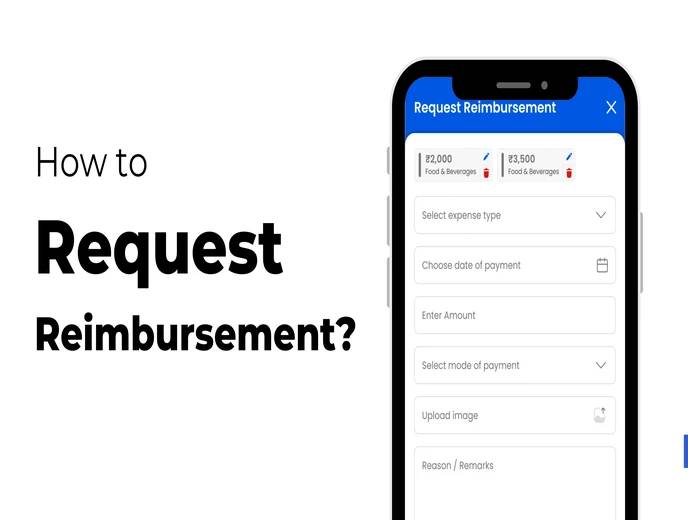
Business-related expenses — travel, client meetings, office supplies — often come out of an employee's own pocket first, with reimbursement following later. When this process runs through email threads or paper forms, claims get lost, approvals get delayed, and both employees and finance teams end up spending more time chasing status updates than the process should require.
This guide explains how to submit a reimbursement request in ZFour HRMS, what to prepare before submitting, how the approval process works, why a digital workflow reduces common friction points, and what to do if a claim is rejected or delayed.
Quick Answer: How Do I Request Reimbursement in ZFour HRMS?
Log in to your ZFour HRMS account.
Open the Reimbursement section from your dashboard.
Tap Add New Request.
Enter the expense type, date, amount, and reason.
Upload supporting receipts or invoices.
Submit the request for approval.
Track the status from the Reimbursement section.
The exact fields and approval workflow can vary depending on your organization's configuration.
What Counts as a Reimbursable Expense?
Common categories include:
Travel costs incurred for work purposes
Meals during business travel
Client meeting expenses
Work-related tools or supplies
The specific categories your organization accepts, and any spending limits, depend on your company's expense policy — check with HR if you're unsure whether a specific expense qualifies. Businesses should also confirm which expense categories carry tax implications under applicable rules; for reference on how certain reimbursements are treated for income tax purposes in India, see the Income Tax Department's guidance on perquisites and allowances.
Why Manual Reimbursement Processes Create Friction
Before looking at the ZFour HRMS workflow specifically, it's worth understanding why reimbursement tends to be a recurring source of frustration when handled manually.
Receipts get lost between the expense and the claim.
Time between incurring an expense and submitting a claim is exactly when a paper receipt is most likely to be misplaced, faded, or forgotten in a pocket or bag.
Approvers lack visibility into pending claims.
When requests arrive by email, they compete with everything else in an inbox, and a manager can easily lose track of which claims are still awaiting a decision.
Employees have no reliable way to check status.
Without a centralized system, the only way to check on a claim is to ask directly — creating repeated interruptions for both the employee and the approver.
Finance teams struggle to reconcile claims at month-end.
Scattered email approvals and paper receipts make it harder to produce a clean, auditable record of what was claimed, approved, and paid.
A digital reimbursement workflow doesn't eliminate the need for judgment in approving claims, but it removes most of the above friction by giving everyone — employee, approver, and finance — the same visible, centralized record.
How to Submit a Reimbursement Request in ZFour HRMS
Step 1: Log In to Your ZFour HRMS Account
Log in with your registered credentials and navigate to your employee dashboard.
Step 2: Open the Reimbursement Section
From the dashboard, select Reimbursement. This section shows your submitted claims and their current status.
Step 3: Add a New Request
Tap Add New Request to start a new claim.
Step 4: Enter the Expense Details
Provide the required information, which typically includes:
Expense type (travel, meals, supplies, etc.)
Date of the expense
Amount spent
Reason or business justification for the expense
Step 5: Upload Supporting Documents
Attach a clear photo or scan of the receipt or invoice as proof of the expense. Claims without supporting documentation may be delayed or rejected, depending on your organization's policy.
Step 6: Review and Submit
Check the details for accuracy — expense type, date, amount, and reason — before submitting. Once submitted, the request moves into your organization's configured approval workflow, typically reviewed by a manager or designated approver.
What Happens After You Submit a Request?
Submitting a reimbursement request doesn't mean it's automatically approved. A typical workflow looks like:
Employee submits request → Manager/approver reviews → Request approved or rejected → Reimbursement processed according to company policy
If the Request Is Approved
The claim moves forward according to your organization's payment or payroll process for reimbursements.
If the Request Is Rejected
Check any available remarks explaining the rejection. Common reasons include missing documentation, expenses outside policy, or incorrect amounts. Contact your manager or HR team if clarification is needed.
If the Request Is Still Pending
A pending status generally means the approver hasn't yet completed their review. Check the status before submitting a duplicate request for the same expense.
Manual Reimbursement vs. ZFour HRMS Workflow
Area | Manual Process (Email/Paper) | ZFour HRMS Workflow |
|---|---|---|
Claim submission | Email or paper form | Digital form with structured fields |
Receipt storage | Physical copies or email attachments | Uploaded and stored with the claim |
Approval visibility | Buried in inbox, easy to miss | Centralized in Reimbursement dashboard |
Status tracking | Requires asking the approver directly | Self-service status check |
Record-keeping for finance | Scattered across emails and folders | Centralized, exportable claim history |
Audit trail | Difficult to reconstruct | Digital record of submission and approval |
The core benefit isn't speed alone — it's giving employees, approvers, and finance teams a shared, visible record instead of a process that depends on emails not getting lost.
Common Problems When Submitting a Reimbursement Request
Receipt upload isn't working. Check the file format and size — most systems accept standard image or PDF formats. If the issue continues, try a different device or contact IT support.
The reimbursement option isn't visible. This can happen if the feature isn't enabled for your account or your organization manages reimbursements through a different process. Contact your HR or system administrator.
Request has been pending for a long time. Check whether it's within your organization's normal approval timeframe before following up with your manager or HR.
Claim was rejected without a clear reason. Contact your manager or HR team directly to understand what needs to be corrected before resubmitting.
Best Practices for Reimbursement Requests
Submit claims promptly.
Don't let receipts pile up — submitting soon after the expense reduces the risk of losing documentation or forgetting details. For guidance on how quickly expenses should be submitted, check your organization's specific reimbursement policy, since ZFour's Payroll Management capabilities often connect reimbursement timing with broader payroll cycles.
Keep receipts clear and legible.
A blurry or partial receipt image is a common reason for delayed approval.
Match the amount and category precisely.
Entering the wrong expense category or an inaccurate amount can trigger unnecessary back-and-forth with the approver.
Provide a clear business reason.
A specific justification ("Client dinner with [context]") is processed more smoothly than a vague one ("business expense").
Check your company's expense policy before submitting.
Confirm spending limits and eligible categories in advance rather than finding out after a claim is rejected. For a broader look at how expense-related data connects with attendance and payroll records, see how attendance is marked in ZFour HRMS.
Final Thoughts
Submitting a reimbursement request in ZFour HRMS follows a straightforward process: enter the expense details, attach supporting documentation, and submit for approval. The main things within an employee's control — accurate details, clear documentation, and prompt submission — are also the biggest factors in how smoothly a claim moves through approval.
A digital workflow doesn't remove the need for an approver to actually review each claim, but it does remove the friction of lost receipts, buried emails, and status updates that require asking someone directly — replacing them with a shared, visible record for everyone involved.
Have a claim currently pending or need help with the process?
Contact your HR team, or explore ZFour HRMS to see how reimbursement fits into the broader payroll and expense workflow.

Farheen Ahmed
HR Tech Content Strategist at ZFour Technology Private Limited
Research-driven content on HRMS, payroll, attendance management, employee management, and modern HR technology for Indian businesses.