8 min read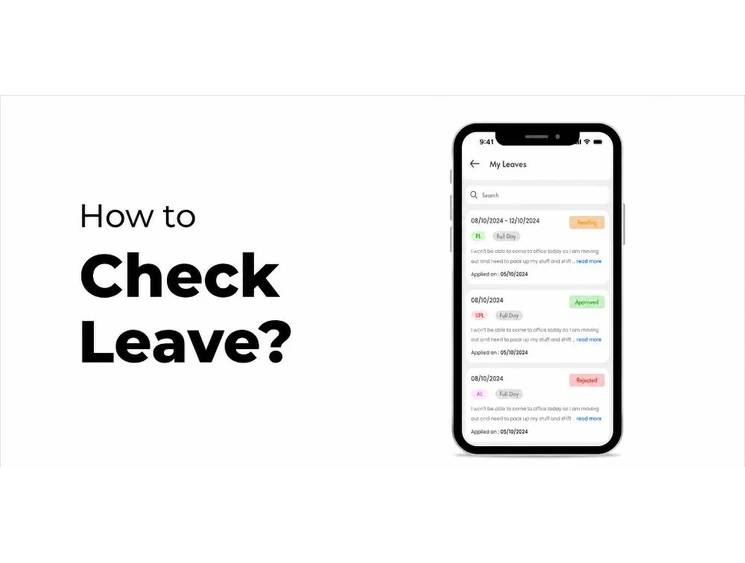
Keeping track of your available leave helps you plan time off, review your leave usage, and avoid confusion when submitting a leave request. With ZFour HRMS, employees can check configured leave balances and review previous leave activity through the Leave module.
This guide explains how to check leave balance in ZFour HRMS, what information you can review, how leave balance differs from leave history, and what to do if the displayed balance does not match your expectations.
Quick Answer: How Do You Check Leave Balance in ZFour HRMS?
To check your leave balance in ZFour HRMS:
Log in to your ZFour HRMS account.
Open the Leave module.
Go to the Leave Dashboard.
Review the available and used leave information for your configured leave types.
Open Leave History if you need to review previous leave activity.
The exact leave categories and information displayed can vary depending on your organization's ZFour HRMS configuration and leave policies.
What Is a Leave Balance?
A leave balance represents the leave information available to an employee according to the organization's configured leave policies and recorded leave transactions.
Depending on the organization, employees may see leave categories such as:
Casual Leave (CL)
Sick Leave (SL)
Earned Leave (EL)
Compensatory Off (Comp Off)
Other organization-specific leave types
The available categories, eligibility rules, accrual rules, carry-forward policies, and other settings can vary between organizations.
Therefore, your ZFour HRMS leave balance should always be understood in the context of your company's configured leave policy.
For official information about labour and employment matters in India, refer to the Ministry of Labour & Employment, Government of India.
How to Check Leave Balance in ZFour HRMS Portal
Checking your leave balance involves a few simple steps.
Step 1: Sign In to ZFour HRMS
Open your organization's ZFour HRMS portal and sign in using your authorized employee credentials.
After logging in, you will reach the HRMS dashboard. The available options can vary depending on your organization's configuration and your employee access permissions.
Step 2: Open the Leave Module
From the HRMS dashboard, open the Leave section.
The Leave module brings together information related to employee leave, including leave applications, approvals, balances, and leave history where enabled.
Step 3: Open the Leave Dashboard
Go to the Leave Dashboard to view your available leave information.
Depending on your organization's configuration, the dashboard may display different leave categories and information such as available or used leave.
Leave Information | What It Helps You Understand |
|---|---|
Leave Type | Which category of leave you are viewing |
Available Leave | Leave currently shown as available |
Used Leave | Leave already recorded as used |
Leave History | Previous leave activity and requests |
Request Status | Whether a request is pending, approved, or rejected where available |
The exact information shown on the dashboard depends on the features and leave policies configured for your organization.
Step 4: Review Your Leave History
If you want to understand your previous leave activity, open Leave History.
Depending on the configured interface, you may be able to review:
Leave type
Leave dates or duration
Request status
Previous leave activity
Manager remarks, where available
Reviewing your history can help you understand how recent leave transactions relate to the information displayed in your current balance.
Step 5: Compare Your Balance With Recent Leave Activity
If the displayed balance is different from what you expected, review your recent leave activity before contacting HR.
Check whether:
A recent leave request was approved.
A previous request is still pending.
The correct leave type was selected.
The leave dates were entered correctly.
Your organization's leave rules affect the balance.
This can help you identify whether the difference is related to a recent transaction or your organization's configured leave policy.
Leave Balance vs Leave History: What Is the Difference?
Leave balance and leave history serve different purposes.
Information | Leave Balance | Leave History |
|---|---|---|
Main purpose | Understand available leave | Review previous leave activity |
Available leave | Yes | Not the primary purpose |
Used leave | May be displayed | Can be reviewed through previous records |
Previous requests | Not the main view | Yes |
Request status | May be shown | Yes, where available |
Leave dates | Not the main purpose | Yes |
Best for | Planning future leave | Checking previous transactions |
If you simply want to know how much leave is available, check your Leave Dashboard.
If you want to understand what happened to previous leave requests, check Leave History.
Can You Check Leave Balance on Mobile?
ZFour HRMS can be accessed through a mobile browser, allowing employees to check available leave information without being restricted to a desktop.
The exact mobile interface and available features can vary depending on your organization's configuration and employee permissions.
For a broader overview of how ZFour supports employee leave workflows, explore the Leave Management System.
What Happens to Your Leave Balance After You Apply for Leave?
A leave request and a leave balance are connected, but they are not the same thing.
A typical HRMS workflow can be represented as:
Leave Request → Approval Workflow → Leave Record → Leave Balance
The displayed balance depends on the leave transactions and rules configured by your organization.
Therefore, employees should not assume that every leave request will affect the displayed balance in exactly the same way across all organizations.
If you need to submit a leave request, use the dedicated guide on how to apply for leave in ZFour HRMS.
This keeps the two tasks separate:
This guide: checking leave balance
Application guide: submitting a leave request
What If Your Leave Balance Looks Incorrect?
If your displayed balance does not match your expectation, review your leave information before assuming there is a technical problem.
1. Review Leave History
Check your recent leave requests and recorded leave activity.
2. Check the Leave Type
Make sure you are reviewing the correct category, such as Casual Leave, Sick Leave, Earned Leave, or another configured leave type.
3. Check Leave Dates
Review the dates and duration of recent leave requests.
4. Review Your Company's Leave Policy
Leave accrual, eligibility, carry-forward, and other rules can vary by organization.
5. Contact HR or Your Administrator
If the information still appears incorrect, contact your HR team or authorized ZFour administrator. They can review the employee's configured leave records and applicable policy settings.
Common Reasons Your Leave Balance May Look Different
Several factors can affect how an employee interprets their displayed leave information.
Possible Reason | What to Check |
|---|---|
Recent leave request | Check whether it has been processed |
Pending request | Review the current request status |
Incorrect leave type | Confirm the selected category |
Incorrect dates | Review the leave duration |
Leave policy | Check applicable organizational rules |
Carry-forward or accrual rules | Confirm how your organization handles them |
Employee configuration | Contact HR/admin if the information remains unclear |
This approach helps employees troubleshoot the issue systematically rather than submitting duplicate requests or repeatedly contacting HR.
How to Check Previous Leave Requests
If you want to verify whether a previous leave request was recorded correctly, open the Leave History section.
Depending on your organization's configuration, you may be able to review information such as:
Leave type
Leave duration
Requested dates
Approval status
Manager remarks, where available
Reviewing these records can help you compare previous leave activity with the balance displayed on the Leave Dashboard.
Leave Balance and Leave Application: What's the Difference?
These two HRMS actions are related but have different purposes.
Task | Purpose |
|---|---|
Check Leave Balance | Review available or used leave information |
Check Leave History | Review previous leave activity |
Apply for Leave | Submit a new leave request |
Check Leave Status | See whether a submitted request is pending, approved, or rejected |
This distinction is important because checking your balance does not submit a leave request.
If you need to submit a new leave request, use the dedicated How to Apply for Leave in ZFour HRMS guide.
Best Practices for Checking Your Leave Balance
Check Your Balance Before Planning Leave
Review your available leave information before submitting a request.
Review Pending Requests
Check whether you already have a request awaiting approval.
Select the Correct Leave Type
Different leave categories may have different organizational rules.
Review Leave History
If the balance looks unexpected, compare it with previous leave activity.
Check Dates Carefully
Confirm the dates and duration of recent leave requests.
Contact HR When Records Do Not Match
If you cannot determine why the information differs, contact your HR team or authorized administrator.
Can Employees Download Leave Reports?
Leave information and history can be viewed within the Leave module.
However, download and reporting options depend on the features enabled for your organization's ZFour HRMS account. Do not assume that every leave record is available as an Excel or PDF download.
If your organization has enabled specific reports, the available options will be shown within the relevant HRMS reporting interface.
Why Digital Leave Tracking Helps Employees
A centralized HRMS can make it easier for employees to access leave information without relying entirely on manual records or repeated HR queries.
A digital leave workflow can provide:
Centralized leave information
Leave balance visibility
Leave history access
Request status visibility
Better record-keeping
Easier access through supported devices
Connection with other HR workflows
The main advantage is visibility and traceability: employees can review their leave information within the configured HRMS workflow instead of depending entirely on emails, spreadsheets, or paper records.
Need Help With ZFour HRMS?
If you are an employee using ZFour HRMS and need help checking leave information, start with the Leave module and review your Leave Dashboard and Leave History.
For broader information about employee leave workflows, explore the ZFour Leave Management System.
If you need instructions for submitting a new leave request, follow the How to Apply for Leave in ZFour HRMS.
Ready to Simplify Leave Management?
If your organization needs a centralized HRMS environment for employee leave applications, approvals, balances, and related HR workflows, Explore ZFour HRMS.
Final Takeaway
Checking your leave balance in ZFour HRMS is primarily a Leave Dashboard and Leave History task.
The basic workflow is:
Log in → Open Leave → Check Leave Dashboard → Review Balance → Check Leave History if Required
Before submitting a new leave request, review your available leave information and recent activity. If the displayed balance does not match your expectations, check the leave type, dates, request status, and applicable company policy before contacting HR or your administrator.
For submitting a new leave request, use the separate How to Apply for Leave in ZFour HRMS guide.
Watch the ZFour HRMS Leave Guide
Prefer a visual walkthrough? Watch the ZFour HRMS leave application guide for a step-by-step demonstration of the leave workflow.

Farheen Ahmed
HR Tech Content Strategist at ZFour Technology Private Limited
Research-driven content on HRMS, payroll, attendance management, employee management, and modern HR technology for Indian businesses.