4 min read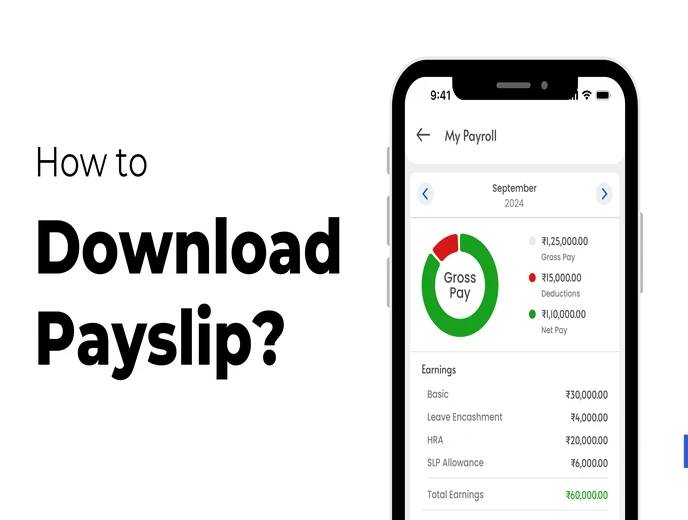
A payslip is more than a routine document — it's proof of income for loans, essential for filing taxes, and a record you may need months or years after the fact. In the past, getting a copy often meant emailing HR and waiting. With ZFour HRMS, employees can download their payslip directly from the mobile app or web portal, anytime.
This guide explains how to download your payslip in ZFour HRMS, what to do if something goes wrong, and how to keep your payslip data secure once you've downloaded it.
Quick Answer: How Do I Download My Payslip in ZFour HRMS?
Log in to the ZFour HRMS app or web portal with your employee credentials.
Go to the Payslip or Salary section from your dashboard.
Select the month and year you need.
Tap Download or View PDF to save or open the payslip.
The exact layout may vary slightly depending on whether you're using the mobile app or web portal, and on your organization's configuration.
Why Your Payslip Matters
A payslip isn't just a record of what you were paid — it's documentation you'll likely need for several practical reasons:
Salary breakdown. It shows your basic pay, allowances, bonuses, and deductions in one place, which is useful for understanding exactly how your salary is structured.
Tax filing. Payslips are commonly required when filing income tax returns, particularly for verifying TDS deductions against Form 16. For official guidance on Form 16 and TDS on salary, see the Income Tax Department's e-filing portal.
Loan and credit applications. Banks and lenders typically ask for recent payslips as proof of income when evaluating loan, credit card, or rental applications.
Personal financial records. Keeping a personal archive of payslips makes it easier to track income history over time, without relying on HR to reissue old records later.
How to Download Your Payslip on the ZFour HRMS Mobile App
Step 1: Open the App and Log In
Open the ZFour HRMS mobile app and log in with your registered employee credentials.
Step 2: Go to the Payslip Section
From your dashboard, tap Salary and Benefits or Payslip, depending on your app version.
Step 3: Select the Month and Year
Choose the specific month and year for the payslip you need. Double-check your selection before proceeding, especially if you're looking for a specific past month.
Step 4: Download or View the PDF
Tap Download or Generate PDF to save the payslip to your device, or View to open it directly in the app.
How to Download Your Payslip on the ZFour HRMS Web Portal
Step 1: Log In to the Web Portal
Go to your organization's ZFour HRMS web portal and log in with your employee ID and password.
Step 2: Open the Payslip Section
Navigate to the Salary or Payslip section from your dashboard.
Step 3: Choose the Relevant Month
Select the month and year you need from the available list.
Step 4: Download or Print
Choose Download PDF to save the file, or Print if you need a physical copy.
Keeping Your Payslip Secure After Downloading
Since a payslip contains sensitive financial information, it's worth handling the downloaded file carefully:
Log out after downloading, especially if you're using a shared or public device.
Avoid downloading on public Wi-Fi where possible, since these networks are generally less secure for accessing personal financial data.
Store the file in a protected location on your device — a personal folder rather than a shared downloads folder others might access.
Never share your login credentials with anyone, even a colleague trying to help you access a payslip.
Common Problems When Downloading a Payslip
Issue | Likely Cause | What to Do |
|---|---|---|
Payslip won't download or the file appears blank | Browser or app connectivity issue | Refresh the page, try a different browser, or restart the app |
Payslip for a specific month isn't showing | Wrong month/year selected, or payroll for that period isn't yet processed | Double-check your selection; contact HR if payroll for that month should already be available |
Access denied or page won't load | Server issue, session timeout, or account permissions | Try again after a few minutes, or contact your HR/IT team if the issue continues |
Login not working | Incorrect credentials or account lockout | Use the "Forgot Password" option, or contact IT support if you're locked out |
If none of these resolve the issue, contact your HR or system administrator directly rather than repeatedly retrying the same steps.
Final Thoughts
Downloading your payslip through ZFour HRMS takes only a few steps, whether you're using the mobile app or web portal, and having it available on demand means you're not dependent on HR every time you need proof of income for taxes, a loan application, or your own records.
Need help with another self-service task?
See our guide on how to apply for leave in ZFour HRMS, or explore the full ZFour HRMS training video library for walkthroughs of other features.

Farheen Ahmed
HR Tech Content Strategist at ZFour Technology Private Limited
Research-driven content on HRMS, payroll, attendance management, employee management, and modern HR technology for Indian businesses.