6 min read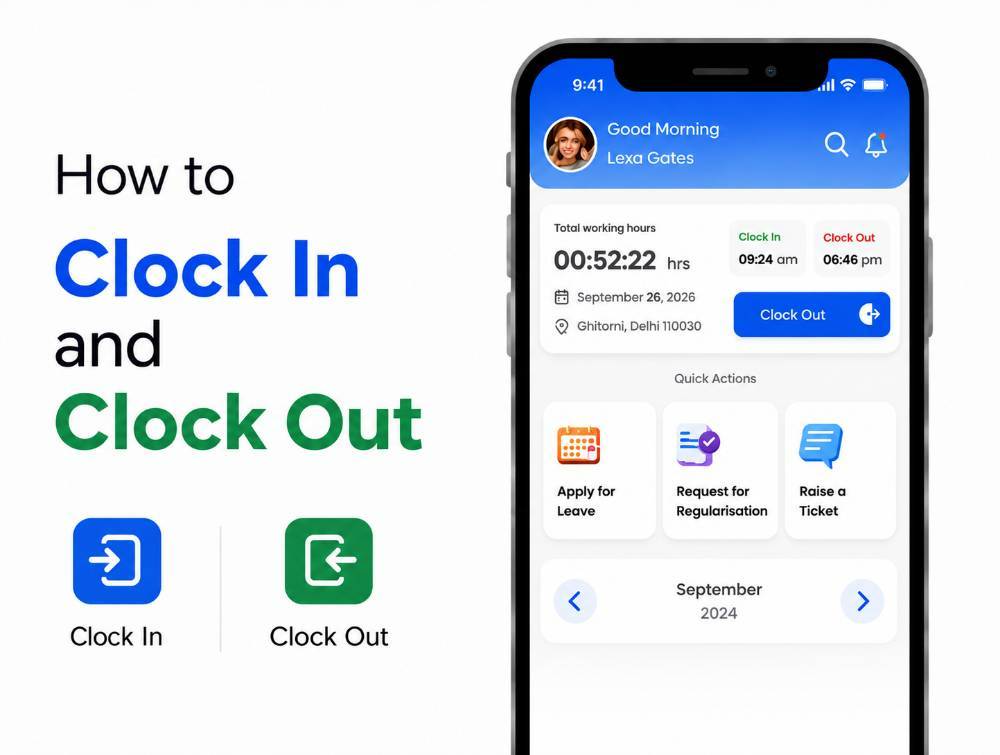
The ZFour HRMS mobile application allows employees to manage daily attendance from their smartphone, where the relevant attendance features are enabled by their organization.
Employees can use the app to log in, mark Clock In, manage breaks where available, mark Clock Out, and review attendance information.
This guide explains how to mark attendance in the ZFour mobile application, including mobile permissions, Clock In, breaks, Clock Out, attendance history, and common mobile attendance problems.
Quick Answer: How Do You Mark Attendance in the ZFour Mobile App?
To mark attendance using the ZFour HRMS mobile application:
Open the ZFour HRMS mobile app.
Log in with your registered credentials.
Open the attendance option from the dashboard.
Allow location access if required.
Complete selfie verification if enabled.
Tap Clock In when you start work.
Use Break when taking a break if the feature is enabled.
Tap Clock Out when your workday ends.
Review your attendance record where available.
The exact interface may vary according to your organization's configuration and app version.
Before You Mark Attendance
Make sure:
You have the ZFour HRMS mobile application installed.
You can log in with your registered credentials.
Your phone has a working internet connection.
Location services are enabled if required.
Camera permission is available if selfie verification is enabled.
You are following your organization's attendance policy.
Which Attendance Method Does Your Company Use?
Different attendance methods serve different operational needs. Your company decides which one applies to you, and that decides what you’ll need on your phone before you clock in.
Attendance Method | Suitable For | Main Purpose | What You Need on Your Phone |
|---|---|---|---|
Manual login/logout | Fixed office teams | Simple attendance recording | Just the app and your login |
Geo-fencing | Field and location-based teams | Location-based attendance control | Location turned on, and you must be inside the permitted area |
Selfie attendance | Mobile or distributed teams | Additional identity verification | Camera access for the app |
Combined methods | Complex workforces | Multiple attendance requirements | Location and camera access, as your company requires |
If you’re not sure which method applies to you, check with your HR team before your first clock-in.
Step-by-Step: How to Mark Attendance in ZFour Mobile App
Step 1: Open the ZFour HRMS Mobile App
Open the ZFour HRMS application on your smartphone.
Use the version provided or approved by your organization.
Step 2: Log In
Enter your registered username, employee ID, or other required credentials.
Tap Login to access your employee dashboard.
If you cannot log in, contact your organization's HR or system administrator instead of repeatedly entering incorrect credentials.
Step 3: Open the Attendance Option
From the mobile dashboard, open the Attendance section or the attendance action available to you.
The exact position of the option can vary depending on your organization's configuration.
Step 4: Allow Location Access if Required
If your organization uses location-based attendance, the application may request location access.
If required:
Turn on location services.
Allow the required permission.
Make sure you are in the permitted attendance area if geo-fencing is configured.
Location requirements are organization-specific.
Step 5: Complete Selfie Verification if Enabled
If your organization uses selfie verification, follow the instructions shown in the app.
You may need to allow camera access before completing the verification.
Selfie verification is only applicable where the organization has enabled it.
Step 6: Tap “Clock In”
Once the required checks are complete, tap Clock In.
The app records attendance according to your organization's configured workflow.
Check for the confirmation or updated attendance status before leaving the screen.
Step 7: Use the Break Option When Required
If your organization has enabled break tracking, tap Break when starting your break.
When you return to work, use the same configured control to end the break.
This helps the attendance system distinguish recorded break time from working time where the feature is enabled.
Step 8: Tap “Clock Out” at the End of the Workday
When your workday ends, open the attendance section and tap Clock Out.
Check that the attendance status or check-out time has been recorded.
Step 9: Review Your Attendance
Where Attendance History is available, open it to review your recorded attendance.
You may be able to see information such as:
Attendance date
Clock In time
Clock Out time
Working hours
Break information
Attendance status
What If You Forget to Clock In or Clock Out?
If you forget to record attendance:
Open Attendance History.
Check whether the system recorded any part of the attendance.
Contact your HR or manager if required.
Follow the organization's regularization process if a correction is needed.
Do not enter inaccurate attendance information simply to complete the record.
For a dedicated correction workflow, read How to Regularize Attendance in ZFour HRMS.
Common ZFour Mobile Attendance Problems
Clock In Button Is Missing
Check whether:
You are logged into the correct account.
Your organization has enabled mobile attendance.
Your employee profile has the required access.
If the button is still unavailable, contact your HR/admin team.
Location Permission Is Denied
Go to your phone's application permissions and check whether ZFour HRMS has the required location access.
If your organization uses geo-fencing, also make sure you are within the configured attendance area.
Selfie Verification Is Not Working
Check:
Camera permission
Camera access
Lighting
Internet connection
If the problem continues, contact your HR/admin team.
Clock In Was Recorded but Clock Out Is Missing
Check your attendance history first.
If the check-out is genuinely missing, follow the attendance regularization process configured by your organization.
Break Is Not Recording
Make sure the Break option is enabled for your employee profile and that you are using the configured control correctly.
Contact HR/admin if the issue continues.
Mobile Attendance Best Practices
Keep Location Permission Available When Required
If your organization uses location-based attendance, avoid disabling the required permission during your workday.
Check Attendance After Clock In
Confirm that your attendance has actually been recorded.
Remember to Clock Out
Make Clock Out part of your normal end-of-day routine.
Use Break Controls Correctly
If break tracking is enabled, start and end breaks through the configured app control.
Don't Share Your Account
Your HRMS credentials should be used only by you.
Report Technical Issues Promptly
If the app prevents attendance marking, inform HR/admin rather than waiting until payroll processing.
Mobile Attendance vs General ZFour Attendance Guide
This article focuses specifically on marking attendance through the ZFour HRMS mobile application. The broader attendance guide covers the general ZFour attendance-marking workflow across supported platforms.
Use this guide when you need help with the ZFour mobile app, including login, permissions, location access, selfie verification, Clock In, breaks, Clock Out, and attendance history.
For the broader attendance-marking process, see How to Mark Attendance in ZFour HRMS.
Need Help With ZFour Mobile Attendance?
If you cannot record attendance through the ZFour mobile application, first check your login credentials, internet connection, location settings, camera permissions, and application access.
If an attendance record is missing or incorrect, follow your organization's configured attendance regularization process. See How to Regularize Attendance in ZFour HRMS.
For the broader attendance-marking workflow, see How to Mark Attendance in ZFour HRMS.
For businesses evaluating a broader attendance solution, explore the ZFour Attendance Management System.
Final Takeaway
Marking attendance through the ZFour mobile application follows a simple process:
Open App → Log In → Attendance → Verification if Required → Clock In → Break → Clock Out → Review Attendance
The exact options can vary according to your organization's setup.
If an attendance record is missing or incorrect, don't create inaccurate entries. Check the record and follow your organization's regularization process.

Farheen Ahmed
HR Tech Content Strategist at ZFour Technology Private Limited
Research-driven content on HRMS, payroll, attendance management, employee management, and modern HR technology for Indian businesses.