8 min read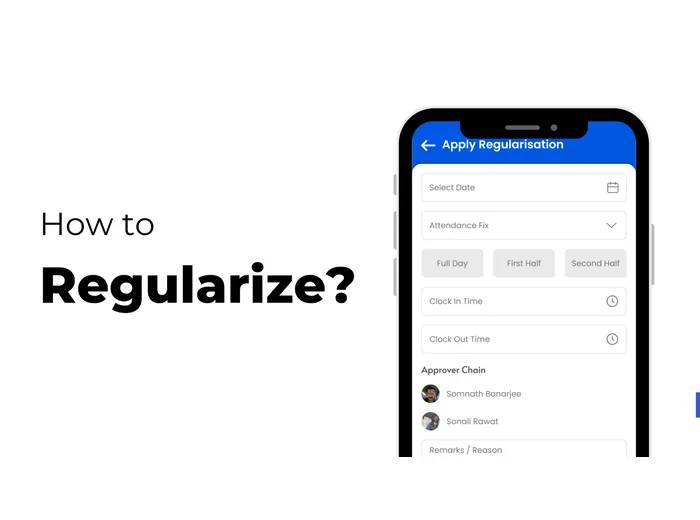
Missed check-ins, forgotten check-outs, incorrect attendance entries, or other attendance discrepancies can happen during a normal working day. Instead of relying on emails or manual spreadsheets to correct these records, employees can use the attendance regularization workflow available in ZFour HRMS, where enabled by their organization.
This guide explains how to regularize attendance in ZFour HRMS, when a regularization request may be needed, what information to provide, how the approval process works, and what to do if a request is rejected or remains pending.
Quick Answer: What Is Attendance Regularization?
Attendance regularization is the process of requesting a correction or adjustment to an attendance record when the recorded attendance does not accurately reflect an employee's actual workday.
For example, an employee may have:
Forgotten to check in
Forgotten to check out
Recorded the wrong attendance time
Experienced an attendance-device or connectivity issue
Had an attendance record that needs correction according to company policy
A regularization request allows the employee to explain the discrepancy and submit it for review according to the organization's configured approval workflow.
Important: Attendance regularization is different from simply marking attendance. Marking attendance records an employee's presence, while regularization is used to request a correction to an existing or missing attendance record.
Key Takeaways
Question | Answer |
|---|---|
What is attendance regularization? | A request to correct or adjust an attendance discrepancy. |
When is it needed? | When attendance is missing, incorrect, or does not reflect the employee's actual workday. |
Who submits the request? | Usually the employee, depending on the organization's workflow. |
Does submitting mean it is approved? | No. The request may need manager or designated-approver review. |
What should the request include? | The relevant date, attendance details, and a clear reason. |
Can a request be rejected? | Yes, depending on company policy and the review outcome. |
Can employees check the status? | Where enabled, employees can track the request through the HRMS workflow. |
Is regularization the same as marking attendance? | No. They serve different purposes. |
When Do You Need to Regularize Attendance?
You may need to submit an attendance regularization request when your attendance record does not accurately represent your workday.
Common situations include:
You forgot to check in.
You forgot to check out.
Your check-in or check-out time is incorrect.
Your attendance was not recorded.
An attendance device or connection issue affected the record.
You worked according to your assigned schedule, but the attendance record needs correction.
Your organization requires a formal request to correct an attendance discrepancy.
The exact reasons accepted for regularization depend on your organization's attendance policy.
Common Reasons for Attendance Regularization
Forgotten Check-In
You arrived at work but forgot to record your check-in.
Forgotten Check-Out
You recorded your arrival but did not record your departure.
Incorrect Attendance Time
The recorded time does not match the actual attendance time.
Technical Issue
A device, network, application, or other technical issue prevented attendance from being recorded correctly.
Attendance Record Missing
The expected attendance entry is not visible in the system and needs to be reviewed.
Other Approved Exception
Your organization may have additional circumstances under which attendance regularization is permitted.
The reason you select or enter should accurately describe what happened.
How to Regularize Attendance in ZFour HRMS
The exact screen names can vary depending on your organization's ZFour HRMS configuration and the version of the application being used.
The typical process is as follows.
Step 1: Log In to ZFour HRMS
Open ZFour HRMS and log in using your registered employee credentials.
After successful login, open the employee dashboard.
Step 2: Open the Attendance Section
From the available HRMS options, open the Attendance section.
Depending on your organization's configuration, attendance-related options may appear directly on the dashboard or inside the attendance module.
Step 3: Select the Attendance Regularization Option
Look for the option used to submit an attendance regularization or correction request.
Select the relevant option to open the regularization form.
If you cannot find the option, contact your HR or system administrator because available features can depend on your organization's configuration and permissions.
Step 4: Select the Attendance Date
Choose the date for which the attendance needs to be regularized.
Check the date carefully before continuing.
For example, if you forgot to check out on Monday, make sure you select the correct Monday rather than another date.
Step 5: Enter the Required Attendance Details
Provide the information requested by your organization's regularization form.
This may include:
Attendance date
Check-in time
Check-out time
Reason for regularization
Additional remarks
Enter accurate information based on what actually happened.
Step 6: Add a Clear Reason
Explain why the attendance record needs to be regularized.
For example:
Forgot to mark check-out after completing my shift.
Or:
Attendance was not recorded due to a technical issue.
Keep the explanation concise and factual.
Step 7: Review the Request
Before submitting, check:
Attendance date
Check-in time
Check-out time
Reason
Additional information
Any required attachment
Make sure the information matches your actual attendance and your organization's policy.
Step 8: Submit the Regularization Request
After reviewing the information, submit the request.
The request then moves through the approval workflow configured by your organization.
Depending on the workflow, a manager, HR administrator, or another designated approver may need to review it.
What Happens After You Submit a Regularization Request?
Submitting a regularization request does not automatically mean that the attendance record has been approved or changed.
A typical workflow is
Employee submits request → Approver reviews → Request approved or rejected → Attendance record updated according to workflow
The exact process depends on your organization's ZFour HRMS configuration.
If the Request Is Approved
The attendance record can be updated according to the approved correction and configured workflow.
If the Request Is Rejected
The attendance record may remain unchanged.
Check any available remarks to understand why the request was rejected and contact your manager or HR team if clarification is required.
If the Request Is Pending
A pending request generally means the designated approver has not completed the review.
Check the request status before submitting another request for the same attendance issue.
How Is Attendance Regularization Different From Marking Attendance?
This distinction is important because these two processes have different purposes.
Marking Attendance | Attendance Regularization |
|---|---|
Records attendance | Requests correction of an attendance discrepancy |
Usually performed at the time of attendance | Usually performed after an issue is identified |
Creates the attendance entry | Requests an adjustment to an existing or missing record |
Used for normal check-in/check-out | Used for exceptions or corrections |
Example: Check in at work | Example: Forgot to check out |
If you need instructions for recording normal attendance, read the How to Mark Attendance in ZFour HRMS guide.
What If Your Regularization Request Is Rejected?
A rejected request does not necessarily indicate a technical problem.
Possible reasons can include:
The reason does not meet company policy.
The submitted time is inconsistent with available records.
Required information was missing.
The request was submitted for the wrong date.
The approver did not approve the correction.
The organization has specific restrictions on attendance regularization.
What Should You Do?
Check the request status.
Review any available remarks.
Verify the attendance date and details.
Contact your reporting manager if clarification is needed.
Contact HR if there is a policy or attendance-record issue.
Submit another request only when appropriate.
Avoid creating multiple requests for the same issue without checking the original request first.
Common Attendance Regularization Problems
The Regularization Option Is Not Visible
The option may not be available because of:
User permissions
Organization configuration
HRMS setup
Application version
Contact your HR or system administrator if the option is unavailable.
The Attendance Date Is Incorrect
Check the selected date before submitting.
If you have already submitted the wrong date, follow your organization's correction process.
The Request Is Still Pending
Check whether the assigned approver has reviewed the request.
If it remains pending longer than your organization's normal approval timeframe, contact the relevant manager or HR team.
The Request Was Rejected
Review the available reason or remarks.
If the attendance record genuinely requires correction, discuss the issue with your manager or HR team before submitting another request.
Check-In or Check-Out Time Is Wrong
Enter the actual attendance details according to your organization's policy and available attendance records.
Do not enter estimated or inaccurate times simply to complete the request.
Best Practices for Attendance Regularization
Submit Corrections Promptly
If you notice an attendance discrepancy, report it according to your company's process rather than waiting until the end of the month.
Enter Accurate Information
The purpose of regularization is to correct an attendance record, so the information submitted should reflect what actually happened.
Use a Clear Reason
A short, specific explanation is more useful than a vague statement such as “attendance issue.”
Check the Correct Date
Many avoidable errors happen because a regularization request is submitted against the wrong date.
Avoid Duplicate Requests
Always check whether a previous request is already pending before submitting another one.
Follow Company Policy
The HRMS provides the workflow, but your organization's attendance policy determines which situations can be regularized and how requests are approved.
How Attendance Regularization Fits Into HRMS
Attendance regularization is one part of a broader employee attendance workflow.
A typical HRMS process can look like this:
Attendance Recording → Attendance Review → Regularization Request → Approval → Final Attendance Record → Payroll Workflow
This is why attendance corrections should be completed before the relevant attendance period is finalized for payroll, where applicable.
For a broader look at HR administrator workflows, see How Admins Can Master Attendance Management Easily.
Attendance Regularization and Payroll
Attendance records can be relevant to payroll depending on the organization's policies and payroll configuration.
For example, attendance information may contribute to calculations involving:
Working days
Loss of pay
Overtime
Applicable attendance-based adjustments
This is why employees should report genuine attendance discrepancies promptly.
However, regularization approval does not automatically mean that every payroll treatment will be identical across organizations. Payroll rules depend on the company's configuration and applicable policies.
For businesses looking at the broader HRMS workflow, explore ZFour Payroll Management Software.
Attendance Regularization Checklist
Before submitting a request, check the following:
Correct attendance date selected
Correct check-in time entered
Correct check-out time entered
Reason clearly explained
Required information completed
Supporting information attached if required
Request reviewed before submission
Company attendance policy followed
After submitting:
Check request status
Monitor approval
Review remarks if rejected
Contact HR/manager if clarification is needed
Need Help With Attendance Regularization?
If you have a genuine attendance discrepancy, use the regularization workflow configured by your organization and provide accurate information about what happened.
For broader attendance-management requirements, explore the ZFour Attendance Management System.
If your organization wants to connect attendance, leave, payroll, and other HR workflows in one platform, explore ZFour HRMS.
Final Takeaway
Attendance regularization provides a structured way to address genuine attendance discrepancies instead of relying on informal messages or manual records.
The basic process is
Open ZFour HRMS → Attendance → Regularization → Select Date → Enter Details → Add Reason → Submit → Track Approval
The most important step is to provide accurate information and follow your organization's attendance policy.
Regularization should be used to correct genuine attendance issues not to replace normal attendance marking.
Watch the ZFour HRMS Dashboard Walkthrough.
If you are new to the ZFour HRMS interface, watch this short dashboard walkthrough to understand where attendance and other employee functions are located:

Farheen Ahmed
HR Tech Content Strategist at ZFour Technology Private Limited
Research-driven content on HRMS, payroll, attendance management, employee management, and modern HR technology for Indian businesses.