4 min read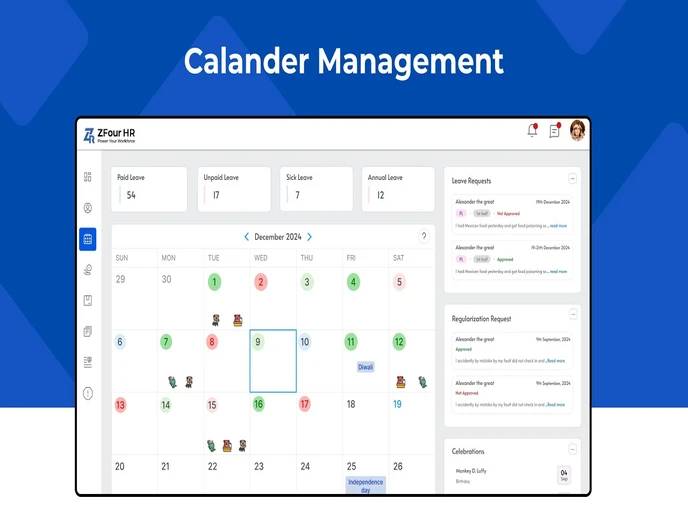
HR teams typically track several things at once — who's on leave, whose shift changed, when the next holiday falls, and which employee has a birthday this week. When this information lives in separate systems (a leave tracker here, a holiday list there, a shift roster somewhere else), getting a single view of "what's happening this week" requires checking multiple places.
Calendar Management in ZFour HRMS brings this information into one unified view. This guide explains what it shows, how to use it, and how it's different from the individual setup screens for holidays, leave, and shifts.
Quick Answer: What Does Calendar Management Show in ZFour HRMS?
The ZFour HRMS calendar consolidates:
Employee attendance and leave status
Upcoming shift schedules
Company holidays
Meetings and scheduled events
Employee birthdays and work anniversaries
Rather than being a place where you configure holidays or shifts individually, the calendar is a combined view that reflects data already set up elsewhere in the system.
What Calendar Management Is (and Isn't)
Calendar Management is a unified dashboard view, not a separate configuration tool. It doesn't replace the specific setup screens for holidays, leave, or shifts — it displays the combined result of those configurations in one place.
If you want to... | Use this instead |
|---|---|
Set up a new company holiday | |
Review and manage attendance exceptions | |
Apply for or approve leave | |
See all of the above in one combined view | Calendar Management (this guide) |
Understanding this distinction matters — if you're trying to add a holiday, the calendar view itself isn't where that configuration happens.
How to Use Calendar Management in ZFour HRMS
Step 1: Open the Calendar
From your HRMS dashboard, navigate to the Calendar section, typically accessible from the main menu.
Step 2: Select the View You Need
Depending on your organization's configuration, you may be able to switch between daily, weekly, or monthly views to see the level of detail you need.
Step 3: Review Combined Information
The calendar displays attendance status, leave, shifts, holidays, and events together, letting you see the full picture for a given day or week without cross-referencing separate screens.
Step 4: Filter by Team or Individual (Where Available)
If your organization has configured team- or department-level views, use filters to narrow the calendar to a specific group rather than the full organization.
Step 5: Set Reminders for Relevant Events
Where supported, set reminders for meetings or scheduled events directly from the calendar so upcoming items aren't missed.
Why a Unified Calendar View Matters for HR Admins
Without a combined view, an admin checking 'who's available this week' typically needs to check attendance records, leave requests, and shift schedules separately — three lookups instead of one. This isn't just a minor inconvenience; it's a common source of scheduling conflicts, where a manager assigns a task to someone who's actually on approved leave because the two records weren't cross-checked. Gallup's research on employee engagement has found that clarity and predictability around work schedules are linked to stronger engagement, reinforcing why reducing avoidable scheduling errors matters beyond simple convenience.
A unified calendar reduces this specific failure mode by surfacing all relevant information in the same view, rather than requiring admins to remember to check multiple systems before making a scheduling decision.
Best Practices for Using Calendar Management
Use it for a quick overview, not detailed configuration.
If you need to change a shift or add a holiday, go to the dedicated setup screen rather than trying to edit through the calendar view.
Check the calendar before assigning tasks or scheduling meetings.
A quick glance can prevent scheduling conflicts with approved leave or planned shift changes.
Encourage employee use for transparency.
Where employees have calendar access, it reduces the number of "am I working that day" questions directed at HR.
Review team-level filters periodically.
As team structures change, confirm that calendar filters still reflect current department or team assignments.
Final Thoughts
Calendar Management in ZFour HRMS works best as a quick-reference view that pulls together attendance, leave, shifts, holidays, and events already configured elsewhere in the system — not as a place to configure those things individually. Using it for what it's designed for (a fast, combined overview) rather than expecting it to replace dedicated setup screens is the difference between it saving time and creating confusion about where to actually make changes.
Want to see how calendar, attendance, leave, and holiday management work together in ZFour HRMS?

Farheen Ahmed
HR Tech Content Strategist at ZFour Technology Private Limited
Research-driven content on HRMS, payroll, attendance management, employee management, and modern HR technology for Indian businesses.