5 min read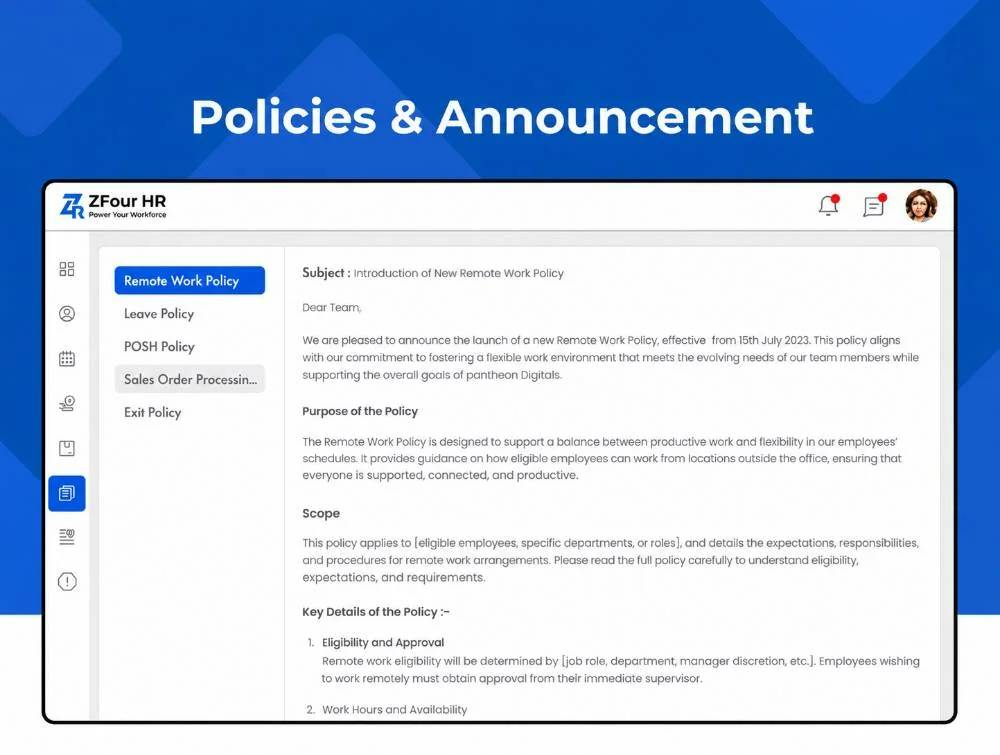
A holiday change, a new office timing, an upcoming town hall: most companies still send these by email or WhatsApp. Some employees miss them, nobody knows who has seen them, and the message is lost in a chat thread a week later.
ZFour HRMS lets admins publish announcements inside the HRMS, so every employee sees them in the same place they check attendance, leave and payslips.
This guide covers how to create an announcement, how to choose who sees it, and when you should publish a policy instead.
This guide covers announcements only. To publish or update company policies (with acknowledgement tracking), see the Policies Management admin guide. To control which admins can post announcements, see Managing User Permissions in ZFour HRMS.
Quick Answer: How Do You Publish an Announcement in ZFour HRMS?
Log in to the ZFour HRMS Admin Portal.
Open the Policies & Announcement section.
Click Create Announcement.
Add a short title and the message. Attach a file if needed.
Choose the audience: all employees, or specific departments, teams or locations.
Publish. Employees see it on their dashboard and in the ZFeed mobile app.
Plan note: Company announcements are included in ZFour's Workforce Pro (₹70/user/month) and Talent Master (₹100/user/month) plans. Compare plans.
Announcement vs Policy vs Notification: Which One Should You Use?
This is the most common mix-up, and choosing the wrong one causes confusion later.
Announcement | Policy | Notification | |
|---|---|---|---|
What it is | One-time news or update | Standing company rule | Automatic system alert |
Examples | Office closed Friday, town hall on Monday, new joiner welcome | Leave policy, WFH policy, code of conduct | Leave approved, payslip ready, attendance missed |
How long it matters | Days or weeks | Until the policy changes | Moments |
Who creates it | Admin or HR | Admin or HR | The system, automatically |
Needs acknowledgement? | Usually no | Often yes | No |
Where to manage it | This guide |
A simple rule: if employees must still follow it six months from now, it's a policy. If it's news, it's an announcement. When a policy changes, update the policy and post a short announcement pointing to it.
Step-by-Step: How to Create an Announcement
Step 1: Log in to the Admin Portal
Log in with an admin or HR account that has permission to publish announcements. If you can't see the Policies & Announcement section, your role may not include it. Ask your ZFour admin to check your user permissions.
Step 2: Open Policies & Announcement
From the admin menu, open the Policies & Announcement section. You'll see a list of past announcements with their publish dates.
Step 3: Create a New Announcement
Click Create Announcement and fill in:
Field | What to enter | Example |
|---|---|---|
Title | Short and specific, under 10 words | Office closed on 2 October |
Message | The key facts first: what, when, who it affects, what to do | The office will remain closed on Friday, 2 October for Gandhi Jayanti. Field teams follow their regular site schedule. |
Attachment (optional) | A PDF or image, if needed | Revised holiday list |
Step 4: Choose the Audience
Send it only to the people it affects. A message meant for the Pune office shouldn't reach the whole company.
Audience | Use it for |
|---|---|
All employees | Company-wide holidays, leadership updates, company events |
Department | Process changes for one team, such as a new expense rule for Sales |
Location / branch | Office timings, local holidays, site closures |
Step 5: Publish
Check the title, message, and audience once more, then publish. The announcement appears on employees' dashboards and in the ZFeed app.
Step 6: Edit or Remove It When It's Out of Date
Once an event has passed or the information is no longer true, edit or remove the announcement so employees don't act on old information.
What Makes a Good Announcement?
Do | Don't |
|---|---|
Put the main point in the title | Use vague titles like "Important update" |
Say who it affects and what they need to do | Make employees guess if it applies to them |
Keep it under 100 words, and attach details | Paste a full policy into an announcement |
Send it only to the relevant team or location | Send every message to everyone |
Link to the policy when a rule changes | Use an announcement instead of updating the policy |
Common Announcements HR Teams Publish
Type | Example |
|---|---|
Holidays and closures | Festival holidays, office closures, local holidays by state. See holiday management in ZFour HRMS. |
Policy changes | "Our WFH policy has been updated. Read it in the Policies & Announcement section". |
Events | Town halls, training sessions, celebrations |
Operational updates | New office timings, shift changes, system downtime |
People news | New joiners, promotions, work anniversaries |
Compliance reminders | Investment declaration deadlines, document submission dates |
Things to Keep in Mind
Don't share personal data in announcements. Salary details, health information, or disciplinary matters about a named employee should never go into an announcement. Employee personal data in India is covered by the Digital Personal Data Protection Act, 2023, so share only what the audience needs to know.
Announcements don't replace statutory notices. Some labour laws require certain notices, such as working hours, holiday lists or POSH Internal Committee details, to be displayed at the workplace in a specific way. An HRMS announcement is a useful extra channel, but check what your state and industry require through the Ministry of Labour & Employment. For POSH-specific requirements, see our POSH compliance guide.
Limit who can publish. If everyone in HR can post to the whole company, messages pile up and employees start ignoring them. Give publishing rights only to the people who need them.
Email and WhatsApp vs HRMS Announcements
Email / WhatsApp | ZFour HRMS announcements | |
|---|---|---|
Where employees see it | Mixed in with personal and work messages | In the HRMS dashboard and ZFeed app |
Targeting | Manual mailing lists or groups | By department, team or location |
Field staff without email | Often missed | Visible in the mobile app |
Finding it later | Search through old threads | All announcements in one list |
Former employees | May still be in WhatsApp groups | Lose access when their account is deactivated |
Final Takeaway
Use announcements for news, policies for rules, and let notifications handle system alerts. Keep each announcement short, send it only to the people it affects, and remove it once it's out of date.
Want to see how announcements work in ZFour? Book a free ZFour HRMS demo.

Farheen Ahmed
HR Tech Content Strategist at ZFour Technology Private Limited
Research-driven content on HRMS, payroll, attendance management, employee management, and modern HR technology for Indian businesses.